This manual is based on the V0.3.5 PC application and current formal RJ-ESP-32S-Master source
V0.3.5 User Manual
Master integration · Installation · Connection · Playback · Media · Troubleshooting · Protocol
Document revision 1.0
Release date 2026-09-02
Applicable software RJ-ESP-32S PC Player V0.3.5
Companion device RJ-ESP-32S-Master
|
Item |
Value |
|
Title |
RJ-ESP-32S PC Player V0.3.5 User Manual |
|
Platforms |
Windows 10/11 x64; Windows 11 ARM64; macOS Apple Silicon ARM64 |
|
PC baseline |
V0.3.5; Git dbcfc131f18dca34f6e810fcb1783d3e3d47163c |
|
ESP baseline |
RJ-ESP-32S-Master; Git d0fd10106d4dcbd663c559ea2a9147e30fe76e53 |
|
Protocol |
Fixed 20-byte RJUSB frame; A39 11BYTE/22BYTE conversion |
|
Verified |
Source, protocol vectors, cross-platform builds, release structure, language and media automation |
|
Pending |
Real-hardware wireless reception, lighting behavior, RF coverage and customer environment |
ontents
Product relationship, installation, connection, parameters, playback, media, logs, troubleshooting, protocol appendix and site acceptance.
1. Product Role and Scope
RJ-ESP-32S PC Player is the desktop playback-control application for the RJ-ESP-32S-Master. It sends playback-control frames through the ESP32-S3 USB Serial/JTAG virtual serial interface and can also control local audio or video playback on the computer.
The application does not configure A39 RF routing and does not upload audio or video to the Master. The USB payload contains only HY, Frame, RGBW and six reserved bytes in a fixed 20-byte control frame.
1.1 System Relationship
PC application
-> USB Serial/JTAG virtual serial port (fixed 20-byte control frame)
RJ-ESP-32S-Master
-> validates the frame and reads its local SetRF configuration
-> UART1 / 115200 / data mode
A39 wireless serial module
-> 11BYTE or 22BYTE wireless application frame
Remote A39 / receiver controller / lighting equipment
|
PC application |
Connection and handshake; 20-byte frame generation; Play, Pause, Stop, Replay and Time control; local media playback; ACK timeout and retry |
Does not set A39 target group, target address or channel; does not confirm remote wireless reception |
|
RJ-ESP-32S-Master |
USB serial service; frame header/XOR validation; SetRF lookup; A39 11/22BYTE conversion; A39 UART write |
Does not receive PC audio/video content; does not implement text PLAY/PAUSE/STOP commands |
|
A39 |
Wireless serial transmission using the configured route |
Does not interpret the PC user interface or media file |
|
Remote receiver |
Receives the 11/22BYTE application frame and drives the field output |
Reception cannot be proven by RJUSB RX OK alone |
Important: RJUSB RX OK means that the ESP passed local validation and invoked its A39 UART transmission path. It is not a remote wireless acknowledgement. Verify the receiver or lighting output during site acceptance.
1.3 Software and Protocol Revisions
The application version is V0.3.5. The project protocol document is labelled V0.2 because that is the protocol generation; it does not mean the software has reverted to V0.2. V0.3.5 continues to use the same fixed RJUSB 20-byte protocol.
2. Before You Begin
2.1 Select the Correct Package
|
Computer |
Package |
|
Intel/AMD Windows 10/11 |
Windows-x64 NSIS Setup or Windows-x64 Portable ZIP |
|
Parallels Windows 11 on an Apple Silicon Mac |
Windows-ARM64 NSIS Setup or Windows-ARM64 Portable ZIP |
|
Other Windows on ARM computer |
Windows-ARM64 NSIS Setup or Windows-ARM64 Portable ZIP |
|
Apple Silicon macOS |
macOS-ARM64 DMG |
|
Intel Mac or Linux |
No V0.3.5 customer package is provided |
2.2 Required Equipment
- RJ-ESP-32S-Master with matching firmware.
- A USB data cable; a charge-only cable will not work.
- A39 and remote receiver with correct power and antenna connections.
- Approved SetRF values for Mode, Channel, TGroup, Tadd and Packet.
- Optional local audio or video files for media playback.
2.3 Configure A39 on the Master
Open the Master SetRF page and verify:
|
SetRF item |
Purpose |
|
Mode |
Select A39 |
|
Channel |
RF channel; must match the receiver configuration |
|
TGroup |
Target group inserted by the Master |
|
Tadd. |
Target address inserted by the Master |
|
Packet |
Select 22BYTE or 11BYTE |
22BYTE carries R, G, B, W and six reserved bytes. 11BYTE carries only HY, Frame and RGB; W and the reserved bytes are omitted. Use 22BYTE when W is required and confirm that the remote receiver supports it.
2.4 Enable USB Serial on the Master
- Open the Net page.
- Find USB Communication / USB COM.
- Switch from U Disk to USB Serial.
- Wait for USB Serial, Driver ready or Handshake OK.
Enabling USB Serial shuts down the USB mass-storage service, installs the USB Serial/JTAG driver and starts the receive task. Switching back to U Disk stops the serial service.
The USB serial service is not unconditionally enabled at power-up. If no PC port is visible, first check that the Master Net page is in USB Serial mode.
2.5 A39 Initialization
The normal-work startup path configures A39 and starts its receive task. When a valid USB frame arrives, the firmware also initializes A39 if its UART is not installed. If it is already installed, the firmware prepares 115200 baud and MD00/MD01=1/0 data mode before transmission.
3. Installation and First Launch
3.1 Windows Installer
- Choose ARM64 or x64 for the target computer.
- Verify the supplied SHA-256 and run Setup.
- Complete the installer. It handles the matching Microsoft Visual C++ Runtime.
- Launch the application from the Start menu or desktop shortcut.
The Windows installer is not commercially code-signed. SmartScreen may warn on first launch. Use only the official package and verify its SHA-256.
3.2 Windows Portable Package
- Fully extract the Portable ZIP into a dedicated folder.
- Do not copy only RJESP32SPlayer.exe; keep all Qt and media dependencies together.
- If the Visual C++ Runtime is missing, run the included vc_redist package.
- Run RJESP32SPlayer.exe.
3.3 macOS DMG
- Open the macOS-ARM64 DMG on an Apple Silicon Mac.
- Drag the application to Applications.
- Verify the DMG SHA-256 before first launch.
- The application is ad-hoc signed and not notarized. After verifying its source and hash, use Finder Control-click -> Open if macOS shows a security warning.
Do not disable Gatekeeper or remove quarantine attributes to bypass security checks.
3.4 Language
Use the Language menu to choose Chinese or English. The selection is saved for the next launch. Existing log entries keep the language in which they were originally generated.
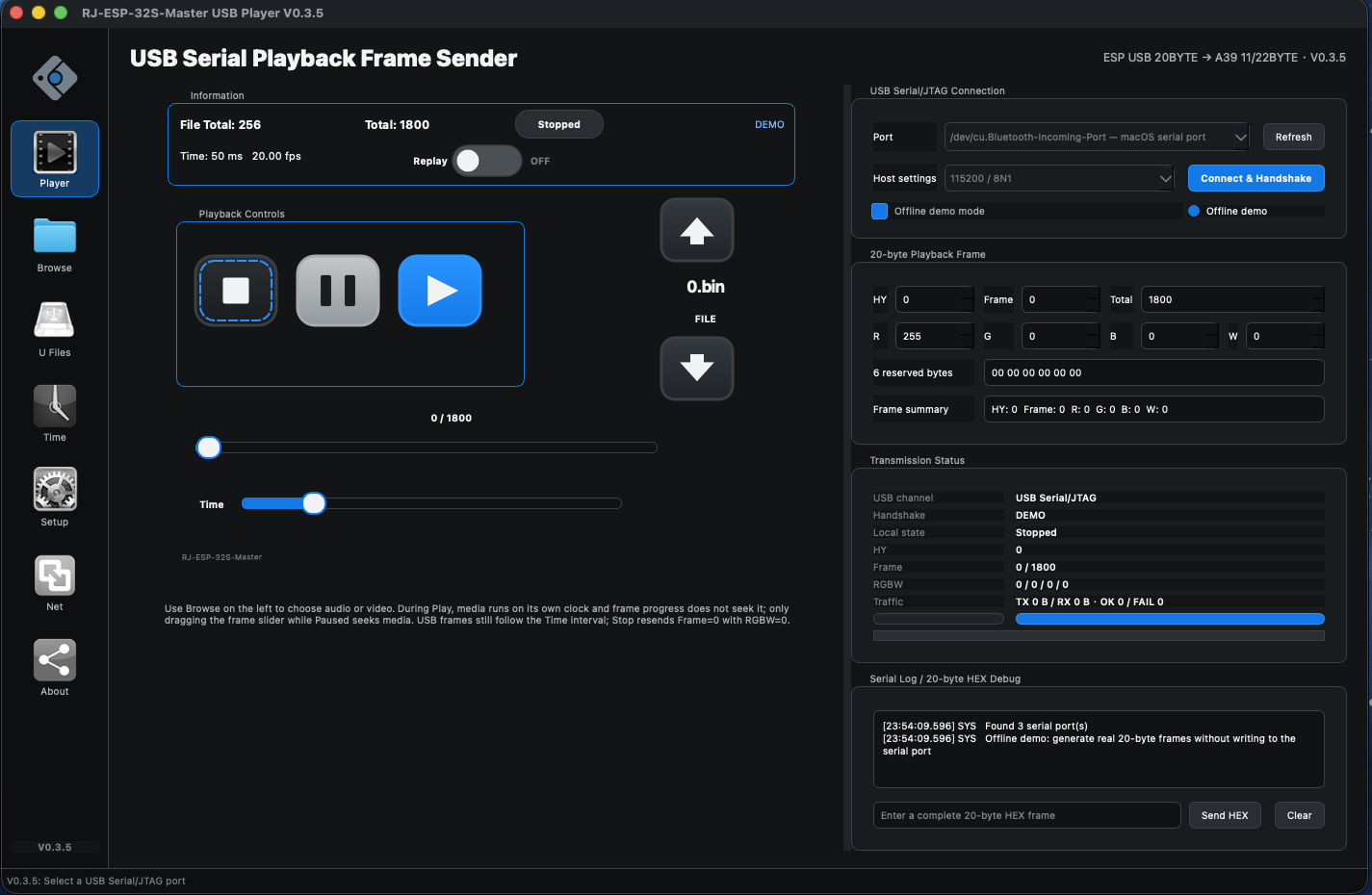
- Navigation: Player, Browse and reserved page entries.
- Information: file total, Total, Time, playback state, Replay and connection state.
- Playback Controls: Stop, Pause, Play, HY file selection, frame position and Time.
- USB Connection: port, 115200/8N1, Refresh, Connect & Handshake and Offline demo mode.
- Playback Frame and Transmission Status: HY, Frame, Total, RGBW, reserved bytes, summary, counters and action buttons.
- Serial Log / HEX Debug: handshake, TX, RX, errors and manual frame transmission.
The U Files, Time, Setup, Net and About navigation entries are currently reserved UI entries. V0.3.5 operational functions are concentrated in Player, Browse, USB Connection, frame editing and the serial log.
5. First Connection to RJ-ESP-Master
5.1 Standard Procedure
- Power the RJ-ESP-Master and A39 system.
- Verify A39 parameters on the Master SetRF page.
- Enable USB Serial on the Master Net page.
- Connect a USB data cable.
- Start the PC application.
- Clear Offline demo mode. The application starts in demo mode and will not write to a serial port until this option is cleared.
- Select Refresh and choose the matching COM or /dev/cu.* port.
- Keep 115200 / 8N1.
- Select Connect & Handshake.
- Wait for Handshake complete or RJUSB OK.
5.2 Handshake
The PC transmits RJUSB HELLO\n once per second. Before a link is established, the Master transmits RJUSB READY\n once per second. It replies with RJUSB OK\n after a valid handshake.
Binary playback frames are sent only after the handshake. If the Master replies RJUSB NEED HELLO, the application retains the latest frame and automatically repeats the handshake.
5.3 Successful Connection Evidence
- The USB connection area shows Handshake complete.
- Transmission Status shows RJUSB OK.
- The Master Net page shows Handshake OK.
- Sending a frame produces RJUSB RX OK in the log.
The last item is still local-link evidence, not proof of RF reception.
6. Playback Frame Parameters
6.1 Parameter Reference
|
Parameter |
Range |
Purpose |
|
HY |
0-255 |
File/program number; linked to 0.bin, 1.bin and so on |
|
Frame |
0-65535 |
Current frame number, high byte first |
|
Total |
0-65535 |
Maximum playback frame number |
|
R/G/B/W |
0-255 |
Red, green, blue and white; W is omitted in 11BYTE mode |
|
Six reserved bytes |
Exactly 6 HEX bytes |
current[1], current[2], extra[0..3]; keep all 00 unless specified |
|
Time |
30-150 ms |
USB frame scheduling interval; default 50 ms or 20.00 fps |
|
Replay |
ON/OFF |
Return to frame 0 at Total, or enter Stop |
In the current code, Total is the maximum frame number. The range is 0 through Total, inclusive. For N frames numbered 0 through N-1, set Total to N-1.
6.2 Frame Summary
Frame summary shows HY, Frame, R, G, B and W for operator readability. The actual transmission remains a complete binary 20-byte frame, with the final byte calculated as the XOR of bytes 0 through 18.
6.3 Send Current Frame
Send Current Frame respects the current playback state:
- Playing or Paused: sends the displayed Frame and RGBW.
- Stopped: forces Frame=0 and RGBW=0.
To hold and transmit a non-zero test frame, enter Play, then Pause, and select the required frame.
7. Play, Pause, Stop and Replay
7.1 State Matrix
|
Action |
Frame |
RGBW |
USB transmission |
Local media |
|
Play |
Increments at Time |
Restores and uses saved values |
Scheduled by Time, limited by ACK flow control |
Runs on its own clock |
|
Pause |
Holds current frame |
Holds current values |
Repeats current frame at Time |
Pauses; frame seeking can now seek media |
|
Stop |
Returns to 0 |
Temporarily displays and sends 0 |
Repeats Frame=0 and RGBW=0 at Time |
Stops and rewinds |
|
Replay ON |
Returns to 0 after Total |
Keeps configured values |
Continues |
Restarts at media end |
|
Replay OFF |
Enters Stop after Total |
Changes to 0 |
Enters zero-frame loop |
Stops and rewinds |
7.2 Play
Complete the USB handshake or select a local media file, configure HY, Total, RGBW and Time, then select Play. The application restores the RGBW values saved before Stop, sends the current frame and begins frame increments.
If media is selected but USB is not handshaken, Play is allowed in media-only mode and the log states that no 20-byte frames are being transmitted.
7.3 Pause
Pause stops frame increments but continues to retransmit the current Frame and RGBW at the Time interval. The media player also pauses.
While paused, dragging the frame slider seeks the media to Frame x Time milliseconds, capped at the media duration. The media must support seeking.
7.4 Stop
Stop saves the last configured RGBW, sets Frame to 0, temporarily sets RGBW to 0, starts the zero-frame loop, and stops/rewinds the media. A selected video preview window may remain open.
Play restores the saved RGBW. Pause directly after Stop does not restore it; use Play when output must resume.
7.5 ACK Flow Control
Only one frame is in flight at a time. While waiting for RJUSB RX OK, the application keeps only the newest queued frame instead of building an unlimited backlog. The ACK timeout is 800 ms with up to two retries. Effective frame rate is therefore also limited by USB, ESP processing and ACK response time.
8. Audio and Video
8.1 Common Formats
The file filters include MP3, WAV, AAC, M4A, FLAC, OGG and WMA audio, plus MP4, MOV, MKV, AVI, WMV, WebM and M4V video. Actual codec support depends on the operating system and Qt Multimedia backend.
8.2 Select a File
- Select Browse on the left.
- Choose a local audio or video file.
- Video selection immediately opens and prewarms a separate preview window.
- Audio-only files keep the preview window hidden.
Media remains local to the computer. It is not transmitted over USB and is not stored on the Master.
8.3 Control Relationship
- Play starts media on its own clock while USB frames follow Time.
- Pause pauses media; only paused frame-slider movement seeks media.
- Stop stops and rewinds media.
- Replay can restart both systems independently at their respective ends.
Moving the frame slider during Play does not seek media. The frame stream and media use independent clocks and are not sample-accurate. For approximate alignment, set Total x Time close to the media duration and begin from frame 0.
9. Serial Log and Manual HEX
9.1 Reply Reference
|
Message |
Meaning |
|
RJUSB READY |
Master USB serial service is ready |
|
RJUSB OK |
Handshake accepted |
|
RJUSB RX OK |
ESP local validation passed and A39 send path was invoked |
|
RJUSB NEED HELLO |
Handshake required; the application restarts it |
|
RJUSB BAD CHECKSUM |
USB frame XOR failed; the application retries |
|
RJUSB AC39 FAIL |
ESP reports A39 forwarding failure |
|
TX HY: ... |
Human-readable field summary; a full 20-byte frame is transmitted |
|
RETRY HY: ... |
Retry after timeout or checksum response |
9.2 Manual 20-byte HEX
The debug field accepts exactly 20 HEX bytes. Spaces, colons, hyphens and underscores may be used as separators. The fixed header and true XOR must be valid. Entering HELLO or RJUSB HELLO restarts the handshake.
Known vector:
Operators should leave reserved bytes and manual HEX unchanged unless directed by engineering.
10. Recommended Workflow
10.1 Initial Commissioning
- Verify package architecture and SHA-256.
- Verify firmware and SetRF Mode, Channel, TGroup, Tadd and Packet.
- Enable USB Serial on the Net page.
- Connect and obtain RJUSB OK.
- Keep all reserved bytes at 00.
- Start with low RGBW and a small Total.
- Enter Play, then Pause, and transmit a fixed test frame.
- Compare the PC log, Master status, remote receiver and actual output.
- Test Play, Pause, Stop and Replay.
- Test media playback and record field results.
10.2 Normal Playback
- Power the Master and enable USB Serial.
- Start the application and clear Offline demo mode.
- Refresh ports, connect and handshake.
- Set HY, Total, RGBW, Time and Replay.
- Optionally select media.
- Select Play.
- Use Pause to hold output and Stop for a controlled zero output.
10.3 Shutdown
- Select Stop and confirm the zero-frame loop.
- Confirm the field output is in the intended stopped state.
- Select Disconnect.
- If USB storage is required, return the Master Net page to U Disk.
- Power down according to site procedure.
11. Troubleshooting
11.1 No Serial Port
- Clear Offline demo mode.
- Confirm USB Serial, not U Disk, on the Master Net page.
- Use a USB data cable and try another port.
- Select Refresh.
- On Windows, check Device Manager for the COM port.
- On macOS, look for /dev/cu.* and check permissions or port ownership.
- Close other serial monitors, Qt Creator serial tools and older PC Player instances.
11.2 Handshake Never Completes
- Select the correct Master port.
- Use Handshake Again.
- Toggle USB COM off and on in the Master Net page.
- Confirm that the firmware implements RJUSB READY / OK.
- Check whether any text is received in the serial log.
11.3 RX OK but No Remote Output
RJUSB RX OK is not a wireless ACK. Check A39 Mode, Channel, TGroup, Tadd, Packet, power, antenna, UART, remote receiver power and receiver protocol. Use receiver logs, an oscilloscope or a logic analyzer for field evidence.
11.4 W Does Not Work
11BYTE does not carry W. Select 22BYTE, verify receiver support, use a non-zero W value and make sure the application is not Stopped.
11.5 RGBW Remains Zero after Stop
This is intentional. Stop continuously transmits zero output. Select Play to restore saved RGBW; Pause does not restore it directly from Stop.
11.6 Frame Rate Is Lower than Requested
Actual rate is limited by RJUSB RX OK. Intermediate frames are not accumulated; only the latest queued frame is kept. Check USB quality and ESP load, then increase Time for comparison.
11.7 Media Cannot Play or Seek
Confirm the file exists and is readable. Try a common MP4/H.264/AAC or WAV file. Some codecs require operating-system support. Non-seekable media cannot follow paused frame-slider movement.
11.8 Installation or Launch Is Blocked
Verify the package architecture and SHA-256. An x64 installer may intentionally reject an ARM64 host; use ARM64 instead. Use the operating system's controlled Open/Run Anyway workflow only after verification. Do not disable SmartScreen, Gatekeeper or antivirus protection.
12. Protocol and Cooperation Appendix
12.1 PC-to-Master 20-byte Frame
|
Index |
Field |
Description |
|
1 |
HY |
0-255 |
|
2 |
Frame |
16 byte |
|
3 |
R |
Red |
|
4 |
G |
Green |
|
5 |
B |
Blue |
The V0.3.5 application always calculates the true XOR and does not use the firmware's legacy USB checksum bypass value 0x99.
12.2 Master USB Processing
The firmware uses the ESP-IDF usb_serial_jtag driver with 1024-byte TX/RX buffers and a dedicated receive task. It processes a byte stream, parses text handshake lines, resynchronizes on the six-byte header, waits for 20 bytes, validates link state and XOR, extracts fields, invokes A39 conversion/UART transmission, and returns a text status to the PC.
A PC write is not guaranteed to equal one ESP read. The firmware state machine joins partial reads and separates consecutive frames.
12.3 22BYTE A39 Frame
[target group][target address][channel]
HY FRAME_H FRAME_L R G B W
The first three bytes come from Master SetRF. The next 16 bytes are PC USB indices 3 through 18. The A39 XOR covers indices 3 through 19.
12.4 11BYTE A39 Frame
[target group][target address][channel]
HY FRAME_H FRAME_L R G B
W and all six reserved bytes are omitted.
12.5 Reliability Boundary
The Master calls uart_write_bytes and waits up to 200 ms in uart_wait_tx_done, but it does not read A39 AUX and has no remote application ACK. The PC-to-ESP handshake and local validation can be confirmed in logs; the RF path and final output require field evidence.
13. Verification and Acceptance
13.1 Verified
- Windows ARM64/x64 and macOS ARM64 release artifacts were built and structurally validated.
- Protocol-vector, brand, language, serial and media-related automated tests passed or were skipped only under the documented non-interactive graphics rule.
- Windows ARM64 automated installation/uninstallation passed.
- macOS DMG structure, architecture, frameworks and ad-hoc signature passed verification.
13.2 Required Field Validation
- Real RJ-ESP-32S-Master, A39 and lighting end-to-end operation.
- 11BYTE/22BYTE receiver compatibility.
- W channel and reserved-field behavior.
- RF coverage, interference, recovery and long-duration playback.
- Native Intel/AMD Windows x64 installation.
- Real macOS video first-frame and audio/video behavior.
13.3 Suggested Acceptance Record
Record application version, firmware revision, PC operating system, package architecture, SetRF values, test HY/Frame/RGBW, Time, Packet mode, PC log, Master status, receiver result and exact reproduction steps for any failure.
Revision and Responsibility Notice
This manual applies to V0.3.5. Revalidate it after any application, firmware or receiver-protocol change. Preserve release hashes, licenses and release records with the delivered package.